Connect Helpship webhooks
With the webhooks on, an order that changes in Helpship updates in codrep seconds later instead of at the next sync. codrep still syncs on a schedule as well, so the webhooks only make it faster.
You can send this page to whoever runs your Helpship account.
Before you start
- You are the codrep store owner. Only the owner sees the Webhooks block.
- The store is already connected to Helpship in Settings (Client ID and Client Secret).
- You can log in to the Helpship account this store ships from.
Set up the webhooks
Step 1 of 5
Generate your secret in codrep
Open Settings, find Helpship WMS Integration and click Generate secret in the Webhooks block. If you made one before, click Show secret to copy it.
Step 2 of 5
Open Helpship's Webhooks page
Open Helpship's Webhooks page and log in with this store's Helpship account. You can also reach it from Account, then Webhooks.
Step 3 of 5
Add the first webhook
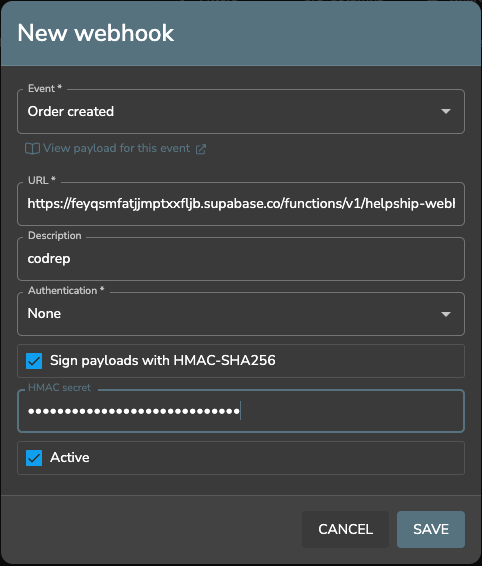
Click Add, fill in the form and click SAVE:
- Event: pick one from the list in step 4.
- URL: copy it from the Webhooks block in codrep.
- Description: anything you like, for example codrep.
- Authentication: None.
- Tick Sign payloads with HMAC-SHA256 and paste the secret into HMAC secret.
- Leave Active on.
Step 4 of 5
Repeat for all five events
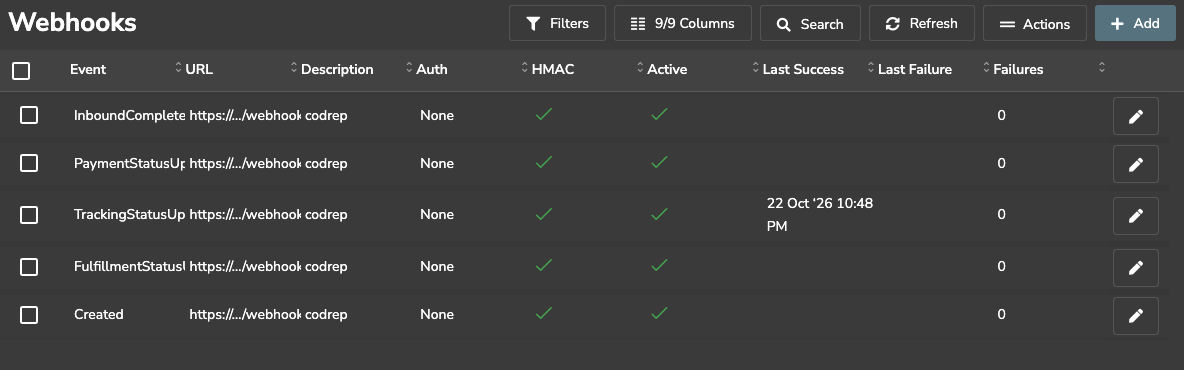
Repeat step 3 until you have 5 webhooks, one per event:
- Order created
- Order status changed
- Tracking status changed
- Payment status changed
- Inbound completed
Only the Event changes. The URL and the secret stay the same.
Helpship's list shows short internal names: Created, FulfillmentStatusUpdated (this is Order status changed), TrackingStatusUpdated, PaymentStatusUpdated and InboundCompleted.
Step 5 of 5
Check it works
After the next order change in Helpship, Last webhook received in codrep Settings shows the time. In Helpship, Last Success fills in per webhook as its event happens. An order change usually triggers Order status changed or Tracking status changed, and Inbound completed only fires when an inbound shipment is completed. The number to watch is Failures: it should stay at 0.


If something looks wrong
- Settings has no Webhooks block. Most likely Helpship is not connected yet: connect it in Settings with the Client ID and Client Secret, and the block appears. Otherwise you are not the store owner, or another store is selected in the store picker. Switch stores, or ask the owner to do the setup.
- The Failures column in Helpship goes up. An occasional failure is fine, because codrep's scheduled sync catches up. If every delivery fails, the secret most likely does not match: check it was pasted in full, or click Regenerate in codrep and paste the new secret into all 5 webhooks.
- Last webhook received never changes after orders change in Helpship. Check that every webhook is Active and that the URL was copied in full.
Questions
Why five webhooks?
Helpship sends one event per webhook, so each event needs its own.
Why not "Fulfillability changed"?
codrep does not use it, so there is nothing to set up.
What if Helpship can't reach codrep?
codrep still syncs your orders on a schedule, so nothing is lost. Helpship does not retry a message that failed.
Is it safe?
Every message is signed with your store's secret. codrep rejects anything that is not.